

agent_id you’ll need for every API call.
Before you start: You need a Vaani account. If you haven’t signed up yet, head to Create an Account first.
What is an Agent?
Think of an agent as a recipe for how your AI handles phone calls:- Prompt — the instructions that define what the agent says and how it behaves
- Language & Voice — which language it speaks and what it sounds like
- Metadata Variables — dynamic placeholders in the prompt (like
{customer_name}) that get filled in with real data at call time
Create Your Agent
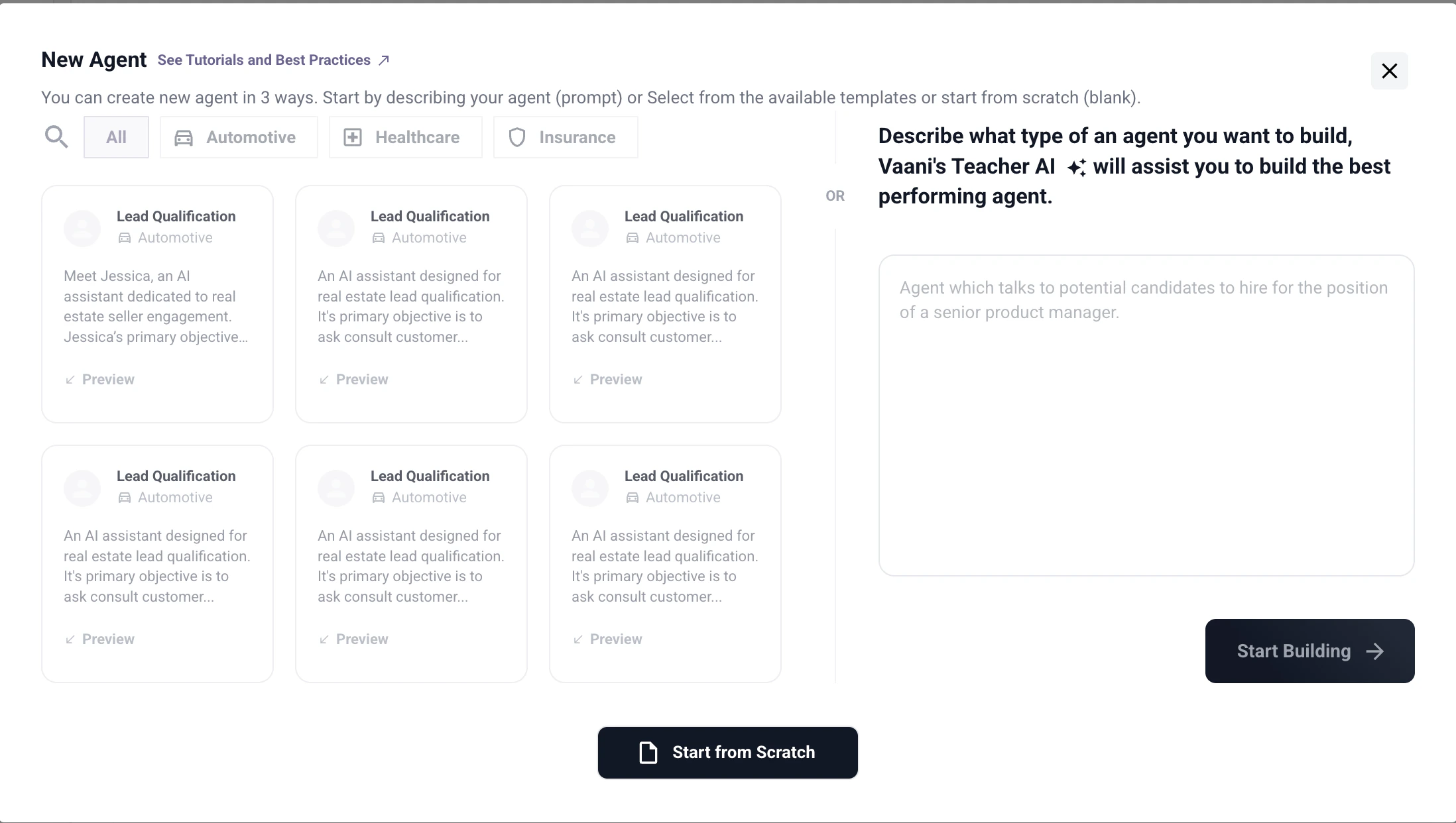
Set a Name
Give your agent an internal name. This is for your reference only — callers never hear it. Use something descriptive like
sales-followup-v1 or appointment-reminder rather than generic names like test agent.Write Your Prompt
The prompt is the most important part of your agent. It defines the agent’s personality, goals, and how it handles different situations. See Writing a Good Prompt below for guidance.
Choose Language and Voice
Select the language your agent will speak. This affects both speech recognition (how well it understands callers) and text-to-speech (how it sounds). Then pick a voice from the available options for that language.
Define Metadata Variables (Optional)
If your prompt uses dynamic placeholders like
{customer_name}, define them here. You’ll pass the actual values through the API when triggering each call. See Understanding Metadata Variables below for details.
Not sure which identifier is which? See the identifier reference table for a quick comparison of
agent_id, API key, call_id, and outbound_number.Writing a Good Prompt
Your prompt is the single biggest factor in how well your agent performs. Here are practical tips:- Start with the role and personality. Tell the agent who it is and how it should behave. (“You are a friendly sales representative for .”)
- Give clear instructions. Describe what the agent should do on the call — its goal, what questions to ask, how to handle objections.
- Use
{variable_name}for anything that changes per call. Names, dates, product details — anything dynamic should be a variable, not hardcoded. - Keep it focused. A prompt that tries to handle every possible scenario usually handles none of them well. Start simple, test with real calls, and iterate.
Understanding Metadata Variables
Metadata variables let you personalize each call without creating separate agents. Here’s how they work: 1. Define placeholders in your prompt using curly braces:“Hello Rahul Sharma, I’m calling from Acme Properties about Prateek Laurel.”
Troubleshooting
My agent says the variable name literally (e.g. says '{customer_name}')
My agent says the variable name literally (e.g. says '{customer_name}')
The metadata key you’re passing in the API doesn’t match the placeholder in your prompt. Check that the spelling and capitalization match exactly. For example, if your prompt uses
{customer_name}, your metadata must use "customer_name" — not "customerName" or "Customer_Name".Where do I find my agent_id?
Where do I find my agent_id?
Go to Agent Config in the dashboard. Your agent’s ID (UUID) is displayed on the agent’s detail page. Click the copy button next to it. The
agent_id looks like 8cf3373e-eb6f-4b4c-9f3c-324a56a91147 — it’s the UUID, not the display name you gave the agent.Can I change my agent's prompt after creating it?
Can I change my agent's prompt after creating it?
Yes. Edits to the prompt, voice, language, or metadata variables take effect on all future calls immediately. Calls that are already in progress are not affected.
Next Step
Set Up Telephony
Connect a phone number so your agent can make and receive real calls